Key Takeaway
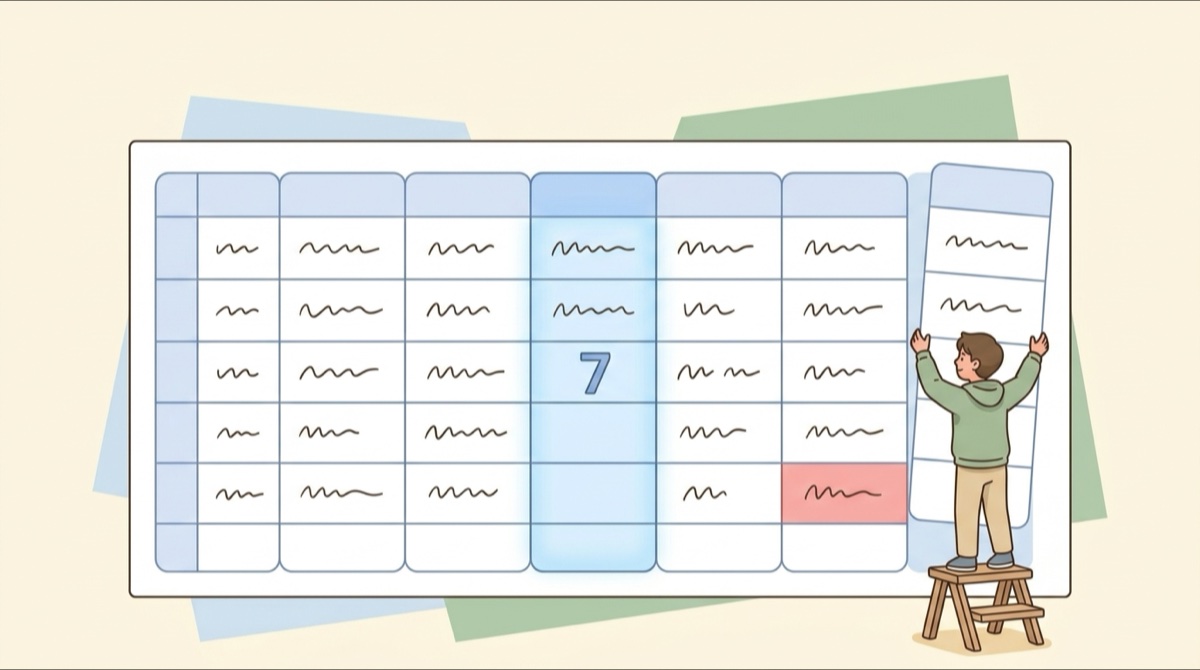
Six columns: person and package, total including bonus, used, remaining, expires, last session.
Only "used" is updated by hand. A formula calculates remaining, and conditional formatting colors the expiry date.
In This Article
Spreadsheets are often the first tool people use to track sessions because adding columns is fast. That flexibility backfires: first versions balloon to more than a dozen columns, and two months later no one updates them. Six columns are enough.
Below: why each column exists, how to set up the formula and colors, and a template to copy. To compare tracking methods first, see what lesson credit management is.
Six columns, one by one
-
Column A: person and package
One person might have two packages. Keep the names distinct, such as "Amy Wang / Facial care 20", so you can tell them apart.
-
Column B: total including bonus
If you buy 10 get 1 free, write 11. Skip a separate bonus column: every extra column is one more thing to remember, and on a busy day it gets missed.
-
Column C: used
Add one after each lesson. This is the only number you update manually.
-
Column D: remaining
Calculate this with a formula instead of typing it. Once you type it by hand, the sheet starts drifting from reality.
-
Column E: expires
Use conditional formatting to change its color when under two weeks remain.
-
Column F: last session
When you reconcile, working back from this date is much faster than scrolling through a chat.
Two settings: subtraction and color alerts
Remaining sessions live in column D. The formula subtracts used from total. In row 3, enter =B3-C3, then drag it down the column. See the official Google Sheets help page for formula basics.
The expiry date is in column E. Select the column, open conditional formatting, choose custom formula, and enter =E3-TODAY()<14 with a red fill. Packages with less than two weeks left will stand out. To keep rows with no expiry date from turning red, use =AND($E3<>"", $E3-TODAY()<14).
Both settings take about five minutes. After that, you only edit the used column and the rest updates itself.
Make a copy of the template
These six columns are set up in a spreadsheet template with the formulas and color alerts ready. You can make a copy in your own Google Drive, clear the sample data, and start tracking.
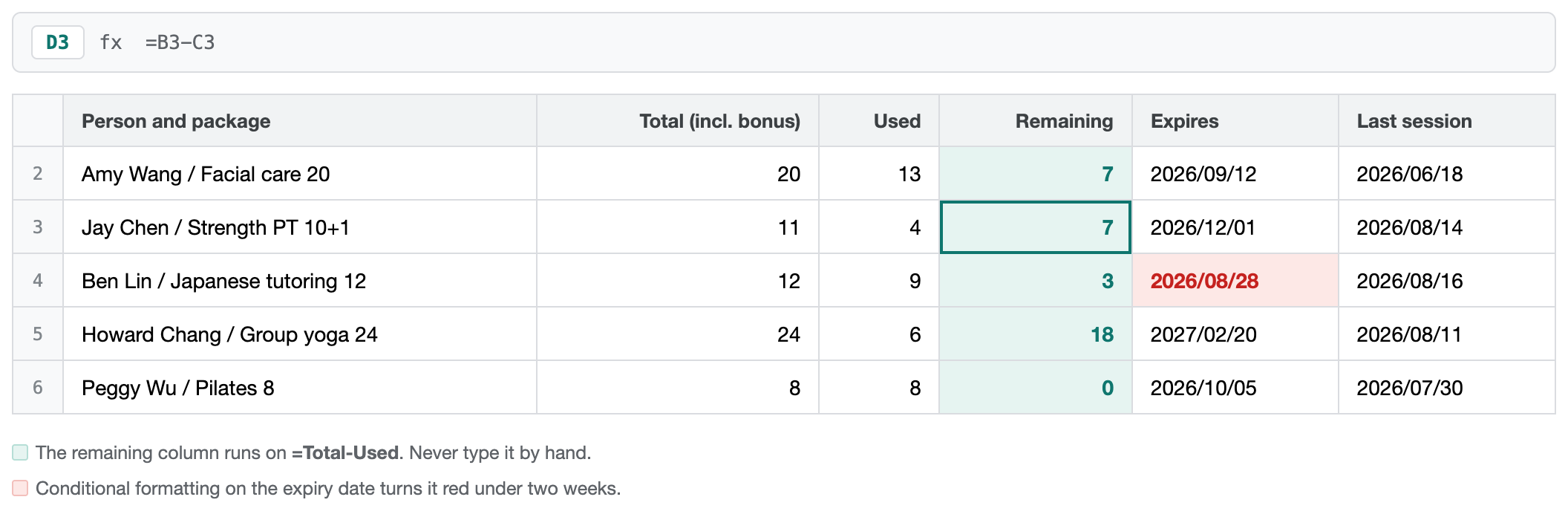
You can also build your own in the same order. Keep the three numbers you check most on the left so you don't scroll sideways on a phone.
How Notion compares
If you use Notion, building a database with these six columns follows the same structure. You can check Notion's official database guide for property types.
Notion takes longer to set up but filters more freely, like showing only packages that expire this month. Sheets win for sharing: if the other person doesn't use Notion, they'd need a new tool first.
One thing this sheet cannot do
A sheet remembers numbers, not whether the two of you agreed on them. Tracking who confirmed which session, and when, needs a checkbox column you tick by hand, and it's easy to skip on busy days.
If you only track your own lessons, this doesn't matter. When you reconcile with a trainer or studio, the confirmation record is where arguments start. To see if your setup holds up, use the three tests in what lesson credit management is.
Frequently asked questions
Should bonus sessions have their own column?
Will the spreadsheet send a reminder before a package expires?
Can someone accidentally edit a shared sheet?

We turn the course-tracking questions people ask us into articles. Course Kit is an app for tracking prepaid session packages, where the manager and the member open it to the same numbers.